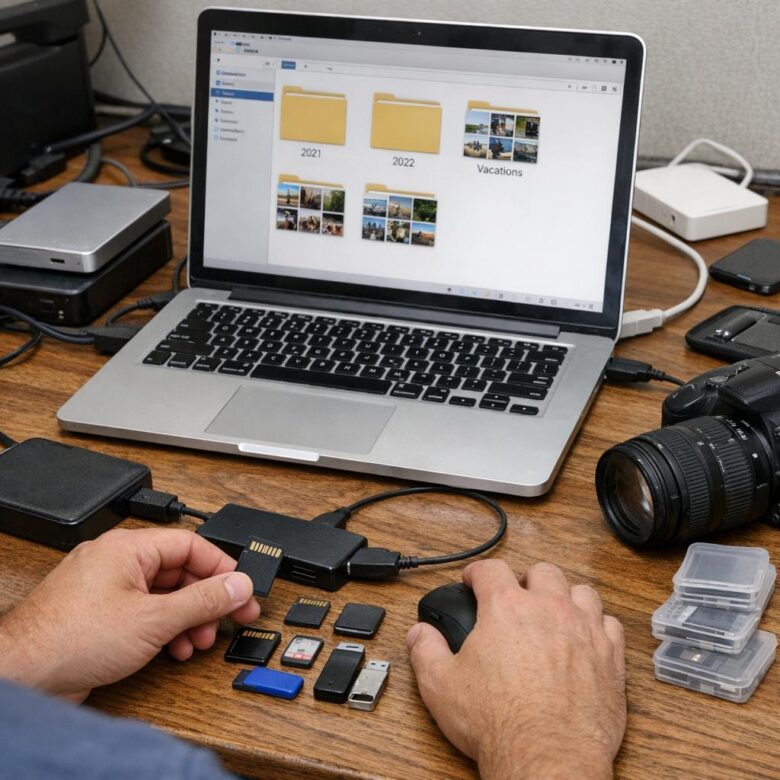
What if your most important photo is already lost-and you just haven’t tried to find it yet?
Digital photo collections grow quietly: phone snapshots, camera imports, cloud backups, screenshots, edits, duplicates, and forgotten folders scattered across devices.
The danger is not just clutter. Poor organization can lead to overwritten originals, missing memories, failed backups, and hours wasted searching for one file you thought was safe.
This guide shows you how to organize digital photos with a simple, reliable system that protects important files while making every image easier to find, back up, and keep for the long term.
Why Digital Photo Organization Starts With File Safety, Not Sorting
Before you rename folders, delete duplicates, or build a perfect photo library, make sure the original files are safe. Sorting a messy collection on a single laptop or external hard drive can be risky because one accidental drag, failed drive, or interrupted transfer may wipe out years of family photos, client images, or travel memories.
A safer approach is to create a backup copy first, then organize the copy instead of the only version you have. For example, if you are moving 30,000 iPhone photos from an old MacBook to a new SSD, upload the originals to Google Photos, iCloud Photos, or another cloud storage service before you start deleting “extra” files locally.
Use a simple safety workflow before any major cleanup:
- Keep one copy on your computer or primary photo storage device.
- Keep one copy on an external SSD or backup hard drive.
- Keep one off-site copy in cloud backup software such as Backblaze, Dropbox, or OneDrive.
In real-world photo organizing work, the biggest losses usually happen during cleanup, not during everyday use. People often delete “duplicates” without noticing that one file is a lower-resolution preview while the other is the original full-quality image with metadata, dates, and location data intact.
Once your photo backup system is in place, sorting becomes less stressful and more accurate. You can use photo management software, duplicate photo finder tools, and external storage devices confidently because recovery is possible if something goes wrong.
How to Build a Folder, Filename, and Metadata System for Easy Photo Retrieval
A reliable photo organization system starts with a simple folder structure you can keep using for years. I usually recommend sorting by date first, then event or location, because dates are objective and easy to search across cloud storage, external SSD drives, and photo management software.
- Folder: 2025 / 2025-07-Italy-Trip
- Filename: 2025-07-14_Rome_Colosseum_001.jpg
- Metadata: Add keywords like “Rome,” “family vacation,” “Colosseum,” and people’s names.
This format works especially well if you move photos between a phone, laptop, NAS device, or online backup service. For example, a parent looking for school graduation photos three years later can search “graduation,” “Emma,” or “2022-06” instead of scrolling through thousands of random IMG_ files.
Use metadata to add context that filenames cannot hold. Tools like Adobe Lightroom, Apple Photos, Google Photos, and DigiKam can read or edit EXIF and IPTC metadata, including dates, camera details, locations, ratings, and keywords.
A good rule is to rename only the final keepers, not every duplicate or blurry shot. This saves time and avoids creating a digital filing system that feels like a second job.
Before renaming large batches, test the pattern on one folder and confirm it syncs correctly with your cloud backup or photo storage service. Small consistency decisions now make photo retrieval much faster later, especially when your library grows across multiple devices.
Common Photo Backup and Duplicate-Removal Mistakes That Can Delete Important Files
One of the riskiest mistakes is cleaning duplicates before completing a verified photo backup. If you delete “copies” from your laptop, phone, or external hard drive before checking that they exist in Google Photos, iCloud Photos, or a cloud storage service like Dropbox, you may remove the only full-resolution version you have.
Be careful with duplicate photo finder tools. Apps such as Gemini 2 or Duplicate Cleaner can save time, but they may flag edited images, burst shots, screenshots, or exported RAW-to-JPEG files as duplicates when they are actually different. I’ve seen people delete a lightly edited wedding photo because the file looked similar to the original at thumbnail size.
- Deleting synced photos: Removing an image from one synced device can also delete it from the cloud and other devices.
- Trusting thumbnails only: Always compare file size, resolution, date, and folder location before removal.
- Emptying trash too soon: Keep deleted photos in the recycle bin or cloud trash for at least a few weeks.
Another common issue is mixing backup and organization tasks. First, create a separate backup on an external SSD, NAS device, or cloud backup service such as Backblaze. Then organize folders and remove duplicates from a working copy, not your only archive.
A simple rule helps: never delete during the same session you import. Let the backup finish, open a few random files to confirm they work, and only then start cleanup.
Wrapping Up: How to Organize Digital Photos Without Losing Important Files Insights
Organizing digital photos is less about creating a perfect system and more about building one you will actually maintain. Start with a clear folder structure, consistent file names, and reliable backups before spending time on tags or albums.
The best choice is the safest one: keep originals protected, remove duplicates carefully, and use cloud storage or an external drive as a second layer of security. If a method feels too complex, simplify it. A photo library that is easy to update will protect your memories far better than an elaborate system you abandon.